Sunday, 21 December 2014

Learn to print a Diamond in C++ (Comments Included)


Print a "Diamond "


Problem:
                       Print Diamond on Console
Solution:
# include <iostream>
using namespace std;
int main()
{
int size, space, star; //space for spacing, star for printing *, size for size of diamond
cout << "Enter the size of Diamond (must be odd and >=5) : " ;
cin >> size;

while (size % 2 == 0 || size<5)

{
cout << "Invalid Input" << endl;
cout << "Please Enter again (must be odd and >=5) : ";
cin >> size;
}
space = size / 2; //As space for the first line is size/2
star = 1; //Star is taken 1 as only 1 * is to be printed in 1st line

for (int i = 0; i<size / 2 + 1; i++) //loop for the upper half including middle line

{
for (int a = 0; a < space; a++) //loop for spacing in upper half
{
cout << " ";
}
for (int b = 0; b < star; b++) //loop for printing *
{
cout << "*";
}
star += 2; //As in upper half two * are increased  
       space --; //As to reduce spacing on left side of pattern by 1
cout << endl;

}
space = 1; //As only one space appear in the line below the central line 
star = size - 2; //As to reduce the number of starric by 2 each time until 1
for (int j = 0; j < size / 2; j++) // loop for lower half of diamond
{
for (int c = 0; c < space; c++) //loop for spacing in the lower half
{
cout << " ";
}
space++; //As the space increases each time by 1 on left side in the lower half
for (int d = 0; d < star; d++) //loop for printing *
{
cout << "*";
}
cout << endl;
star -= 2; //As to reduce number of starric * each time by 2
}


system("pause");

return 0;
}

Learn to print a cross pattern in C++ (With Comments)

PRINT A CROSS Pattern !!
Problem:
                       Print Cross on Console
Solution:

#include <iostream>
#include <iomanip>
using namespace std;

int main()
{
int size , half , su , sl; /* half for printing both halves , su and sl for setw of upper and lower half*/
cout << "Please Enter the size of cross (must be odd and >3): ";
cin >> size;

while(size % 2 == 0 || size < 3)
{
cout << "Invalid input !! Enter again(must be odd and >3): ";
cin >> size;
}

half = size/2;
int a = 1; //a is taken to set the value of setw on the left hand side *
su = size - 1; //su is taken 1 less than size because 1 * is already printed
sl = 2; //sl is taken 2 as because after the middle line the * are two spaces away from each         other.
for(int i=0 ; i<half ; i++)  //for loop to control upper half rows 
{
cout << setw(a)<< "*";
cout << setw(su)<< "*"<< endl;
a++;
su -= 2; /*2 is subtracted from s each time this loop runs as the upper left * moves right                 by 1 value and right * moves left by 1 each time*/
}

cout << setw(half + 1) << "*" << endl; //to display center row
int b = size/2;

for(int i=0 ; i<half ; i++) //for loop to control lower half rows
{
cout << setw(b)<< "*";
cout << setw(sl)<< "*" << endl;
b--;  //1 is subtracted from b each time as the the lower left * moves left in each turn.
sl += 2; //2 is added in t as the lower right and left * moves away by value 1 each.
}

return 0;
}


Wednesday, 17 December 2014

Local Storage Devices

Local Storage Options


1. External Hard Drive

These are hard drives similar to the type that is installed within a desktop computer or laptop computer. The difference being that they can be plugged in to the computer or removed and kept separate from the main computer. They typically come in two sizes :
Desktop External Hard drive : Uses a 3.5 inch hard drive similar to that used in desktop computers.
Portable External Hard drive : Uses a 2.5 inch hard drive similar to that used in laptops.
Desktop External Hard Drives are generally cheaper than Portable External Hard Drives for the same storage space. Desktop External Hard Drives and usually faster and more robust.
Capacity : 160GB to 3TB (approx 3000GB)
Connection : Most common connections to the computer are through a USB 2.0 or USB3.0 connection. May also be available in a SATA or eSATA connector

Advantages :

  • Very good option for local backups of large amounts of data.
  • The cheapest storage option in terms of dollars per GB. Very reliable when handled with care

Disadvantages :

  • Can be very delicate. May be damaged if dropped or through electrical surge

2. Solid State Drive (SSD)

Solid State Drives look and function similar to traditional mechanical/ magnetic hard drives but the similarities stop there. Internally, they are completely different. They have no moving parts or rotating platers. They rely solely on semiconductors and electronics for data storage making it a more reliable and robust than traditional magnetic. No moving parts also means that they use less power than traditional hard drives and are much faster too.
With the prices of Solid State Drives coming down and is lower power usage,  SSD’s are used extensively on laptops and mobile devices.  External SSD’s are also a viable option for data backups.
Capacity : 64GB to 256GB
Connections : USB 2.0/3.0 and SATA

Advantages :

  • Faster read and write performance
  • More robust and reliable than traditional magnetic hard drives
  • Highly portable. Can be easily taken offsite

Disadvantages :

  • Still relatively expensive when compared to traditional hard drives
  • Storage space is typically less than that of traditional magnetic hard drives.

3. Network Attached Storage (NAS)

NAS are simply one or more regular IDE or SATA hard drives plugged in an array storage enclosure and connected to a network Router or Hub through a Ethernet port.  Some of these NAS enclosures  have ventilating fans to protect the hard drives from overheating.

Advantages :

  • Very good option for local backups especially for networks and small businesses.
  • As several hard drives can be plugged in, NAS can hold very large amounts of data
  • Can be setup with Redundancy (RAID) increasing the reliability and/ or read and write performance. Depending on the type of RAID level used, the NAS can still function even if one hard drive in the RAID set fails. Or two hard drives can be setup to double the read and write speed of single hard drive.
  • The drive is always connected and available to the network making the NAS a good option for implementing automated scheduled backups.

Disadvantages :

  • Significantly more expensive than using single External Hard Drives
  • Difficult to bring offsite making it very much a local backup hence still susceptible to some events   like theft and floods, fire etc

4. USB Thumb Drive Or Flash Drive

These are similar to Solid State Drives except that it is much smaller in size and capacity. They have no moving parts making them quite robust. They are extremely portable and can fit on a keychain.  They are Ideal for backing up a small amount of data that need to be brought with you on the go.
Capacity : 4GB to 64GB

Advantages :

  • The most portable storage option. Can fit on a keychain making it an offsite backup when you bring it with you.
  • Much more robust then traditional magnetic hard drives

Disadvantages :

Relatively expensive per GB so can only be used for backing up a small amount of data

5. Optical Drive (CD/ DVD)

CD’s and DVD’s are ideal for storing a list of songs, movies, media or software for distribution or for giving to a friend due to the very low cost per disk. They do not make good storage options for backups due to their shorter lifespan, small storage space and slower read and write speeds.
Capacity CD  : 650MB to 900MB
Capacity DVD  : 4.7GB to 17.08GB
Advantages :
  • Low cost per disk
Disadvantages  :
  • Relatively shorter life span than other storage options
  • Not as reliable as other storage options like external hard disk and SSD. One damaged disk in a backup set can make the whole backup unusuable.

Remote Storage Options


6. Cloud Storage

Cloud storage is storage space on commercial data center accessible from any computer with Internet access. It is usually provided by a service provider. A limited storage space may be provided free with more space available for a subscription fee.  Examples of service providers are Amazon S3, Google Drive, Sky Drive etc.

Advantages :

  • A very good offsite backup. Not affected by events and disasters such as theft, floods, fire etc

Disadvantages :

  • More expensive then traditional external hard drives. Often requires an ongoing subscription.
  • Requires an Internet connection to access the cloud storage.
  • Much slower than other local backups

Numeral Systems

Numeral Systems


Following are the popular numeral systems

Numeral System

b - numeral system base
dn - the n-th digit
n - can start from negative number if the number has a fraction part.
N+1 - the number of digits

Binary Numeral System - Base-2

Binary numbers uses only 0 and 1 digits.
B denotes binary prefix.

Examples:

101012 = 10101B = 1×24+0×23+1×22+0×21+1×2= 16+4+1= 21
101112 = 10111B = 1×24+0×23+1×22+1×21+1×2= 16+4+2+1= 23
1000112 = 100011B = 1×25+0×24+0×23+0×22+1×21+1×20=32+2+1= 35

Octal Numeral System - Base-8

Octal numbers uses digits from 0..7.

Examples:

278 = 2×81+7×8= 16+7 = 23
308 = 3×81+0×8= 24
43078 = 4×83+3×82+0×81+7×80= 2247

Decimal Numeral System - Base-10

Decimal numbers uses digits from 0..9.
These are the regular numbers that we use.

Example:

253810 = 2×10³+5×10²+3×101+8×100

Hexadecimal Numeral System - Base-16

Hex numbers uses digits from 0..9 and A..F.
H denotes hex prefix.

Examples:

2816 = 28H = 2×161+8×16= 40
2F16 = 2FH = 2×161+15×16= 47
BC1216 = BC12H = 11×163+12×162+1×161+2×160= 48146

Numeral systems conversion table

Decimal
Base-10
Binary
Base-2
Octal
Base-8
Hexadecimal
Base-16
0000
1111
21022
31133
410044
510155
611066
711177
81000108
91001119
10101012A
11101113B
12110014C
13110115D
14111016E
15111117F
16100002010
17100012111
18100102212
19100112313
20101002414
21101012515
22101102616
23101112717
24110003018
25110013119
2611010321A
2711011331B
2811100341C
2911101351D
3011110361E
3111111371F
321000004020

Input Devices

                           INPUT DEVICES

Following are few of the important input devices which are used in a computer:
  • Keyboard
  • Mouse
  • Joy Stick
  • Light pen
  • Track Ball
  • Scanner
  • Graphic Tablet
  • Microphone
  • Magnetic Ink Card Reader(MICR)
  • Optical Character Reader(OCR)
  • Bar Code Reader
  • Optical Mark Reader(OMR)

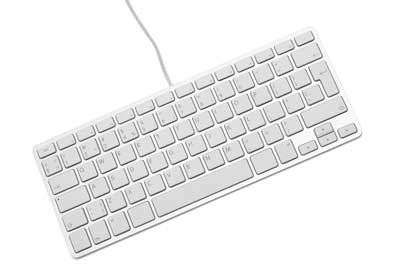
Keyboard

Keyboard is the most common and very popular input device which helps in inputting data to the computer. The layout of the keyboard is like that of traditional typewriter, although there are some additional keys provided for performing additional functions.
Keyboards are of two sizes 84 keys or 101/102 keys, but now keyboards with 104 keys or 108 keys are also available for Windows and Internet.
The keys on the keyboard are as follows:
Sr.NoKeysDescription
1Typing KeysThese keys include the letter keys (A-Z) and digit keys (0-9) which generally give same layout as that of typewriters.
2Numeric KeypadIt is used to enter numeric data or cursor movement. Generally, it consists of a set of 17 keys that are laid out in the same configuration used by most adding machines and calculators.
3Function KeysThe twelve function keys are present on the keyboard which are arranged in a row at the top of the keyboard. Each function key has unique meaning and is used for some specific purpose.
4Control keysThese keys provide cursor and screen control. It includes four directional arrow keys. Control keys also include Home, End, Insert, Delete, Page Up, Page Down, Control(Ctrl), Alternate(Alt), Escape(Esc).
5Special Purpose KeysKeyboard also contains some special purpose keys such as Enter, Shift, Caps Lock, Num Lock, Space bar, Tab, and Print Screen.
Keyboard

Mouse

Mouse is most popular pointing device. It is a very famous cursor-control device having a small palm size box with a round ball at its base which senses the movement of mouse and sends corresponding signals to CPU when the mouse buttons are pressed.
Generally it has two buttons called left and right button and a wheel is present between the buttons. Mouse can be used to control the position of cursor on screen, but it cannot be used to enter text into the computer.

Advantages

  • Easy to use
  • Not very expensive
  • Moves the cursor faster than the arrow keys of keyboard.
Mouse

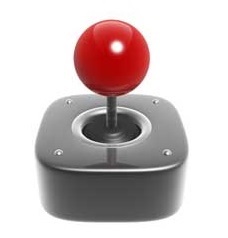
Joystick

Joystick is also a pointing device which is used to move cursor position on a monitor screen. It is a stick having a spherical ball at its both lower and upper ends. The lower spherical ball moves in a socket. The joystick can be moved in all four directions.
The function of joystick is similar to that of a mouse. It is mainly used in Computer Aided Designing(CAD) and playing computer games.
Joystick

Light Pen

Light pen is a pointing device which is similar to a pen. It is used to select a displayed menu item or draw pictures on the monitor screen. It consists of a photocell and an optical system placed in a small tube. When the tip of a light pen is moved over the monitor screen and pen button is pressed, its photocell sensing element detects the screen location and sends the corresponding signal to the CPU.
Light Pen

Track Ball

Track ball is an input device that is mostly used in notebook or laptop computer, instead of a mouse. This is a ball which is half inserted and by moving fingers on ball, pointer can be moved. Since the whole device is not moved, a track ball requires less space than a mouse. A track ball comes in various shapes like a ball, a button and a square.
Track Ball

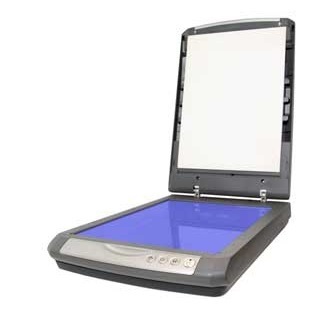
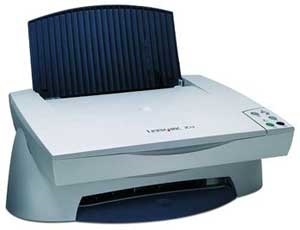
Scanner

Scanner is an input device which works more like a photocopy machine. It is used when some information is available on a paper and it is to be transferred to the hard disc of the computer for further manipulation. Scanner captures images from the source which are then converted into the digital form that can be stored on the disc. These images can be edited before they are printed.
Scanner

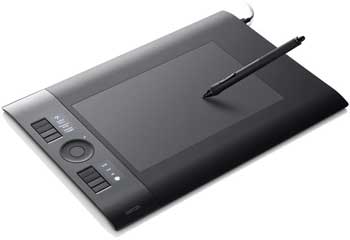
Digitizer

Digitizer is an input device which converts analog information into digital form. Digitizer can convert a signal from the television or camera into a series of numbers that could be stored in a computer. They can be used by the computer to create a picture of whatever the camera had been pointed at. Digitizer is also known as Tablet or Graphics Tablet because it converts graphics and pictorial data into binary inputs. A graphic tablet as digitizer is used for doing fine works of drawing and image manipulation applications.
Graphic Tablet

Microphone

Microphone is an input device to input sound that is then stored in digital form. The microphone is used for various applications like adding sound to a multimedia presentation or for mixing music.
Microphone

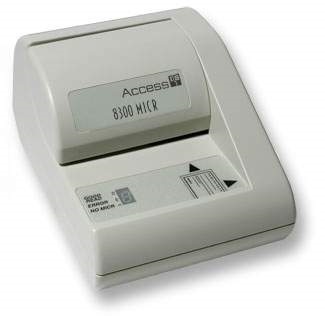
Magnetic Ink Card Reader(MICR)

MICR input device is generally used in banks because of a large number of cheques to be processed every day. The bank's code number and cheque number are printed on the cheques with a special type of ink that contains particles of magnetic material that are machine readable. This reading process is called Magnetic Ink Character Recognition (MICR). The main advantages of MICR is that it is fast and less error prone.
Magnetic Ink Card Reader(MICR)

Optical Character Reader(OCR)

OCR is an input device used to read a printed text. OCR scans text optically character by character, converts them into a machine readable code and stores the text on the system memory.
Optical Character Reader(OCR)

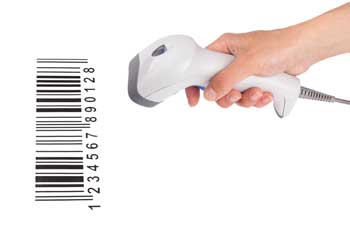
Bar Code Readers

Bar Code Reader is a device used for reading bar coded data (data in form of light and dark lines). Bar coded data is generally used in labelling goods, numbering the books etc. It may be a hand held scanner or may be embedded in a stationary scanner. Bar Code Reader scans a bar code image, converts it into an alphanumeric value which is then fed to the computer to which bar code reader is connected.
Barcode Reader

Optical Mark Reader(OMR)

OMR is a special type of optical scanner used to recognize the type of mark made by pen or pencil. It is used where one out of a few alternatives is to be selected and marked. It is specially used for checking the answer sheets of examinations having multiple choice questions.